Recording Q Sense Data
After connecting the thermal module, start collecting data by tapping the circular red Record Button at the bottom of the main screen.
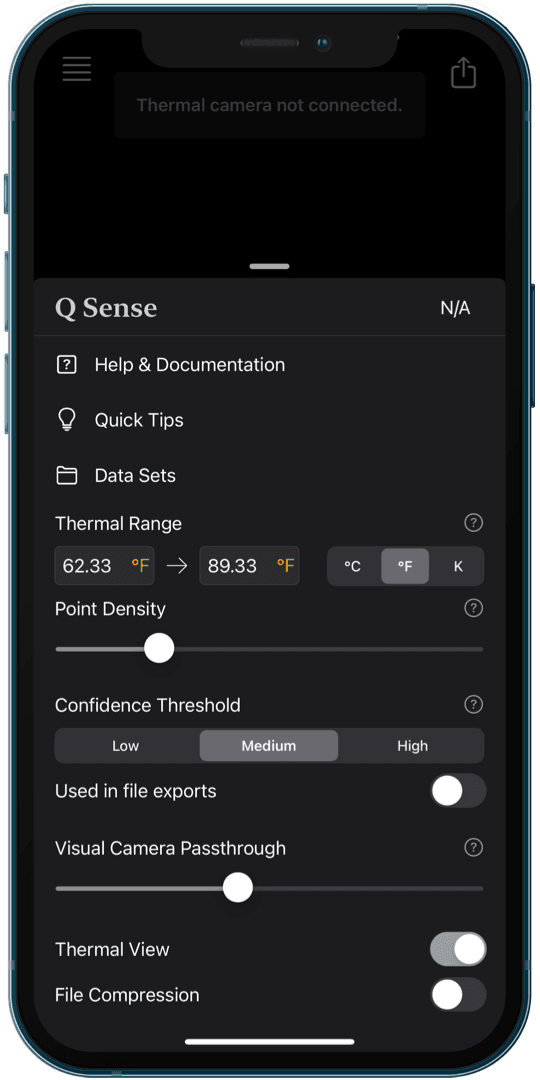
Ensure that the Thermal Range has been set appropriately before beginning the scan. This parameter cannot be changed during a scan.
Q Sense will begin collecting 3D thermal data and the circular red button will transform into square red. Tapping the Record Button again will stop scanning. Scans can be paused and resumed as desired. You can pause scanning to walk around and view the current data
Tap the Done Scanning button to save a completed data set or tap Clear Scan to start a fresh scan.
Follow scanning best practices while recording Q Sense data.
Maximum Scan Size
The maximum Q Sense scan size is a function of the iPhone's memory. When scanning a large space, adjust the Point Density parameter and split the space up into multiple scans. When splitting a space up into multiple scans, ensure that each scan overlaps to allow them to be combined later.