Interface Guide
Main view
Opening the Q Sense app will bring you to the Main View to start recording Q Sense data after tapping the Record Button.
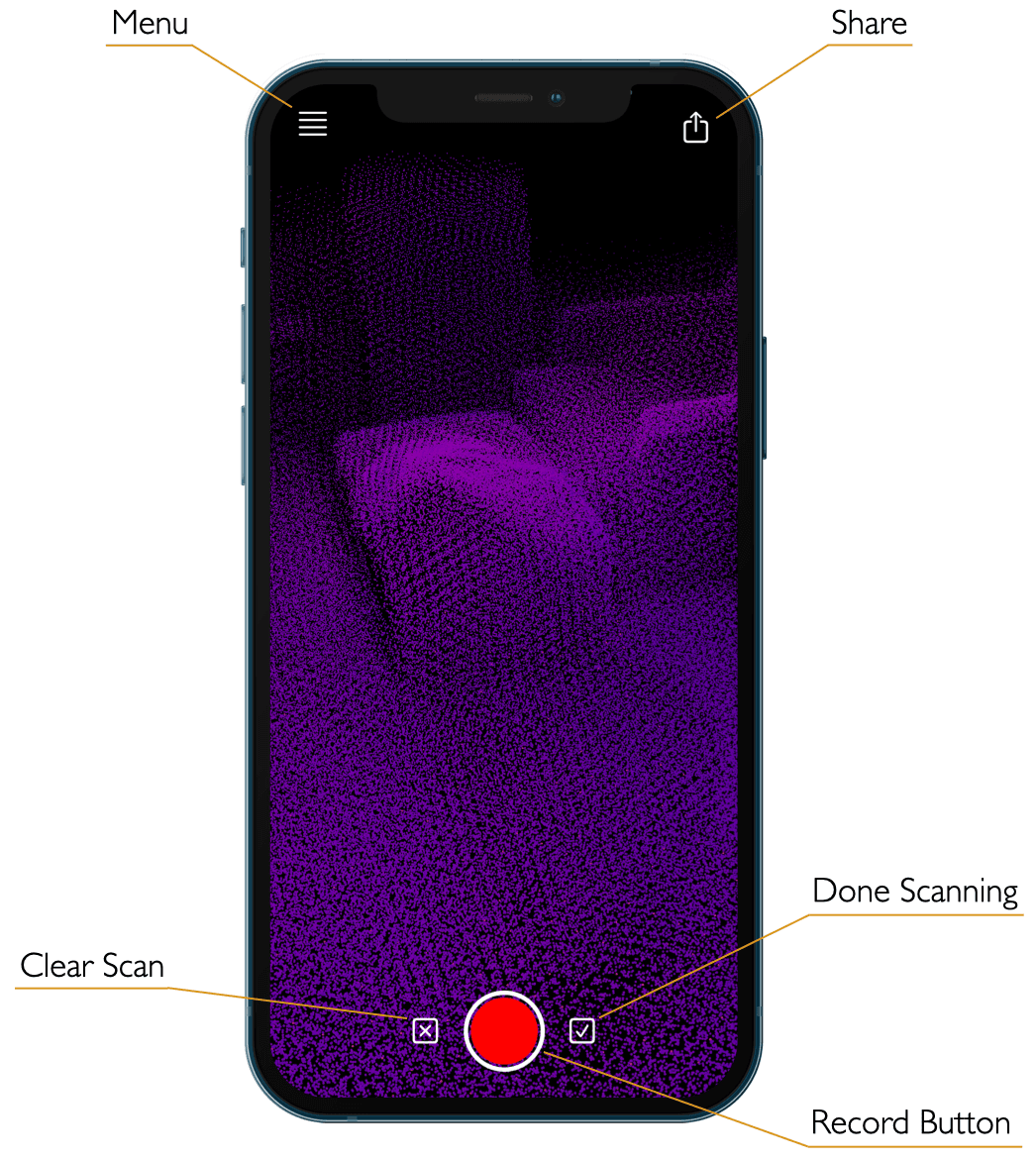
Tap the Menu button to open the Menu View or the Share button to export and share the current data set.
The Done Scanning button will save the current scan and prompt you to enter a title and optional description for the data set.
The Clear Scan button will clear the current data set to start a fresh scan.
Menu View
The Menu View is opened using the Menu button on the Main View. It allows you adjust scanning parameters and view saved data sets.
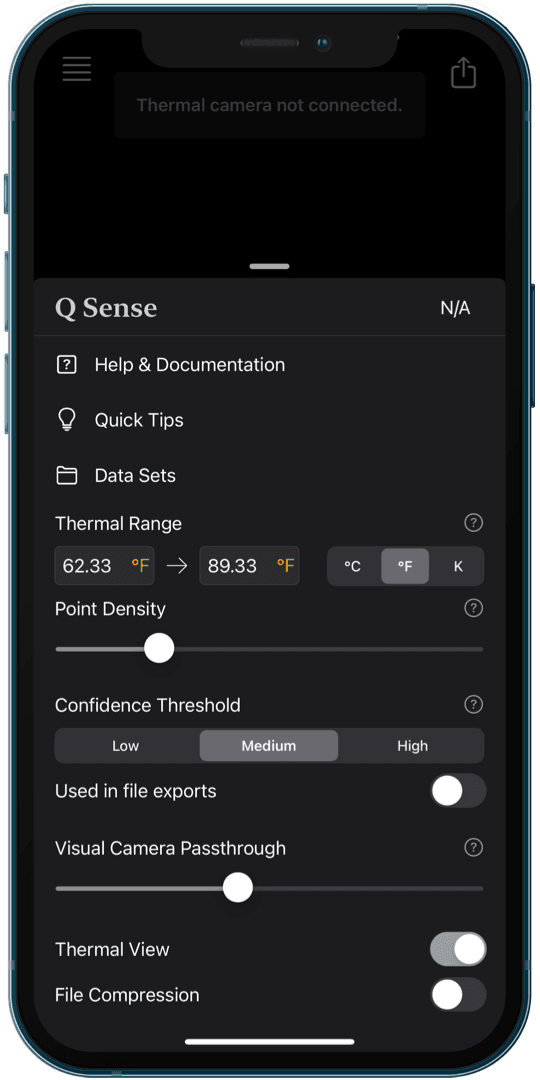
The following scanning parameters and options may be adjusted in the Menu View:
Some of these parameters should not be adjusted during a scan. See each parameter's page for details.
The top right of the Menu View shows the current thermal module battery percentage when attached.
Data Sets View
The Data Sets View shows all saved data sets with their name and metadata.
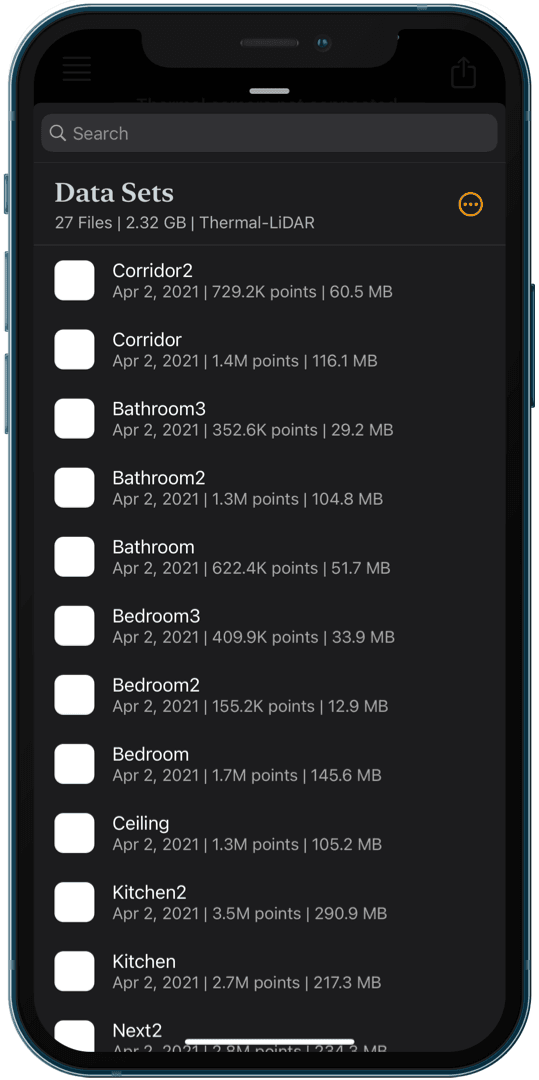
Swipe left on a scan to delete it.
Tapping on a scan opens the Scan Detail View and allows you to export and share a saved scan.